
Service partner
Do work for clients BlockWill assigns, request documents, submit completed work for review, delegate to a team, and message BlockWill.
A service partner does work for clients that BlockWill assigns, then submits it for review and gets paid by BlockWill.
Overview
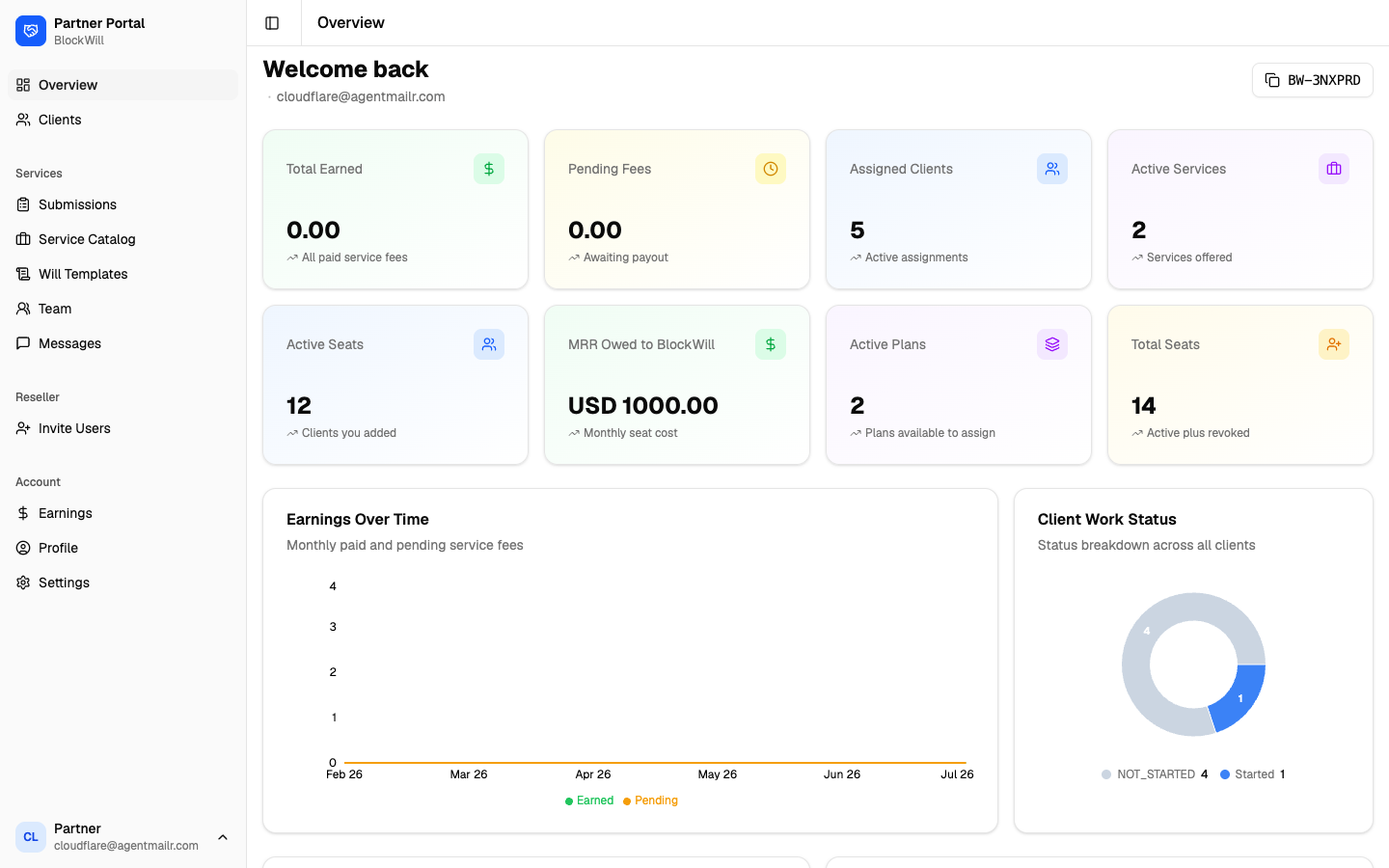
The service Overview adds performance KPIs on top of any reseller stats:
- Total Earned and Pending Fees: paid and awaiting-payout service fees.
- Assigned Clients: active assignments.
- Active Services: services you offer.
- Earnings Over Time: monthly paid vs pending fees.
- Client Work Status: a breakdown (for example NOT_STARTED vs Started) across your clients.
Clients
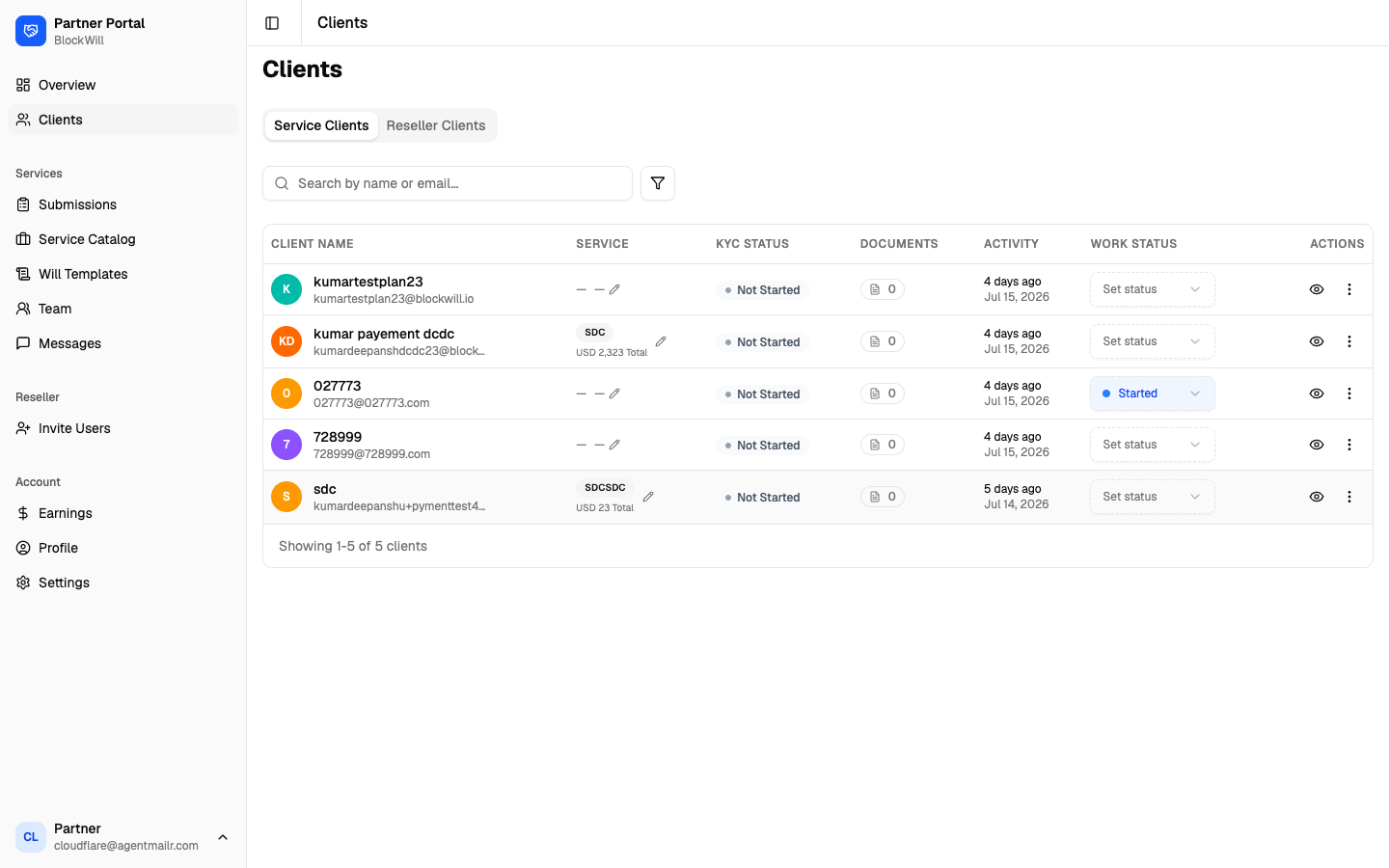
When you have both flows, the Clients page has Service Clients and Reseller Clients tabs. The service list shows each client's Service, KYC Status, Documents, Activity, and Work Status, with a Set status action per row. Click a row to open the client.
Client detail
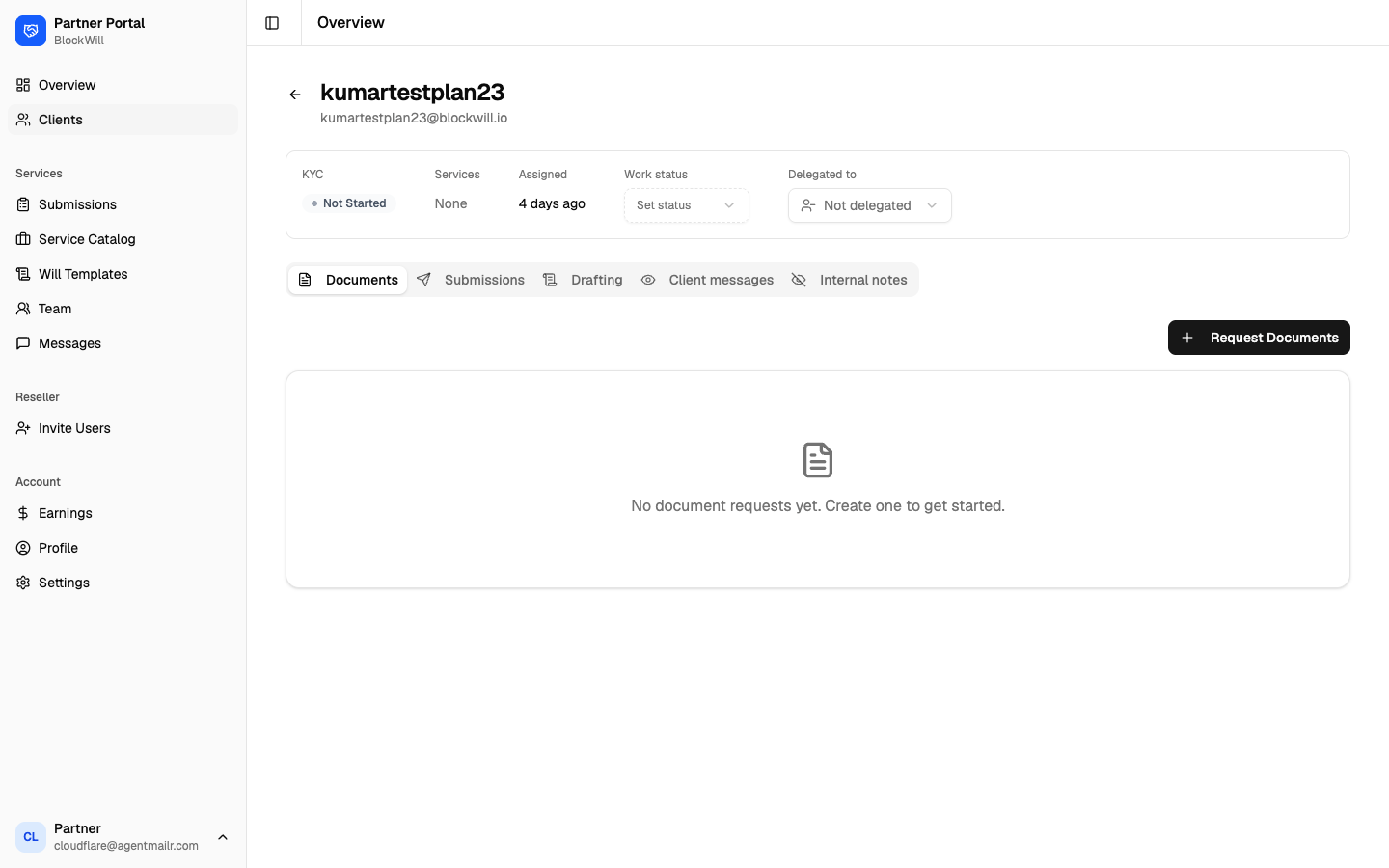
The client page header shows KYC, Services, Assigned date, a Work status selector, and a Delegated to selector (to hand the client to a team member). Below are tabs: Documents, Submissions, Drafting, Client messages, Internal notes.
To request documents from a client
On the Documents tab, click Request Documents.
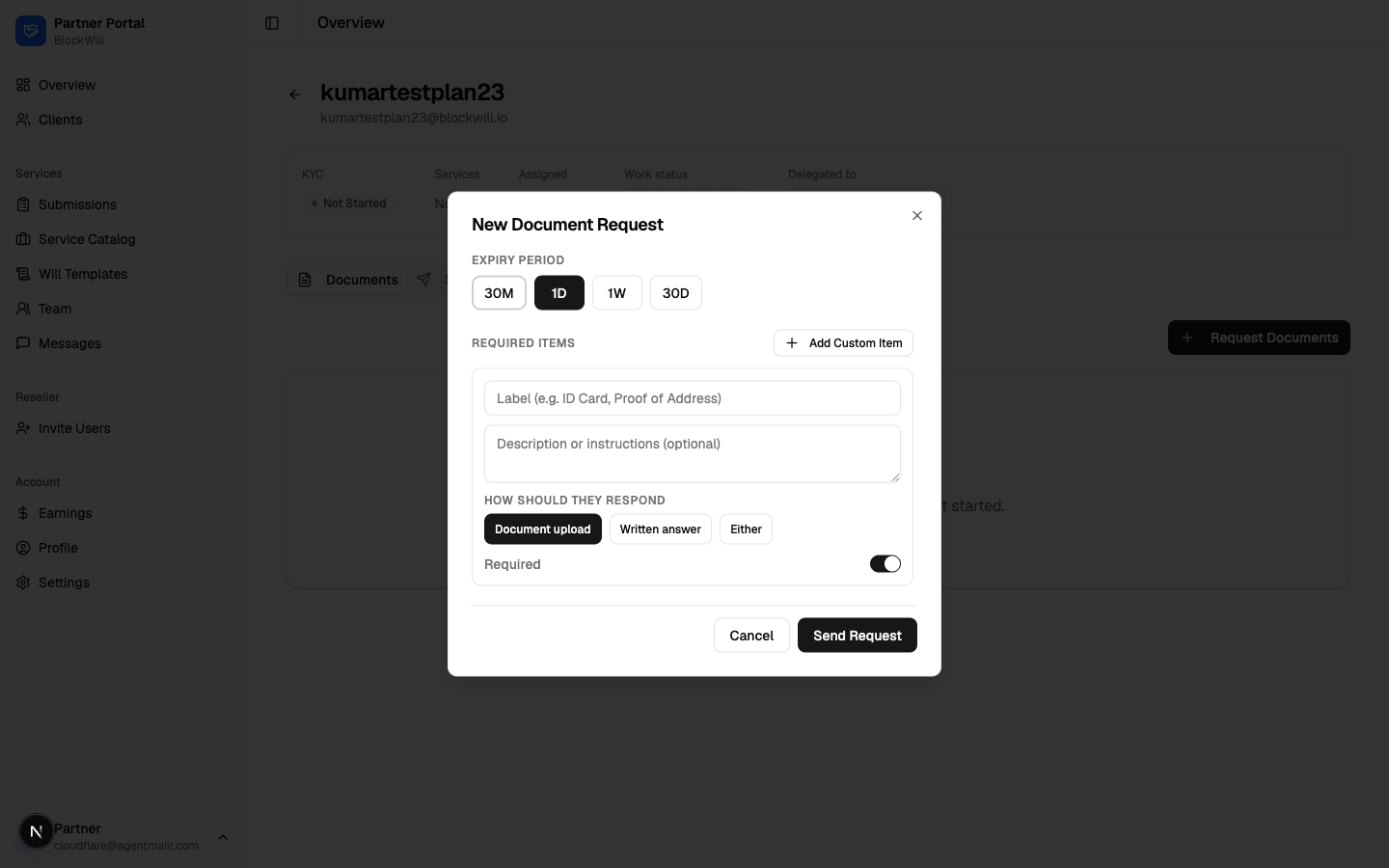
Pick an Expiry Period (30M, 1D, 1W, or 30D).
Add one or more Required Items: a Label (for example "ID Card"), an optional description, and how they should respond (Document upload, Written answer, or Either). Toggle Required per item. Use Add Custom Item for more.
Click Send Request.
Submissions
Submissions are how you send completed client work to BlockWill for review. The page shows Total Submissions, Pending Review, and Approved counts, then the list. A new account shows an empty state.
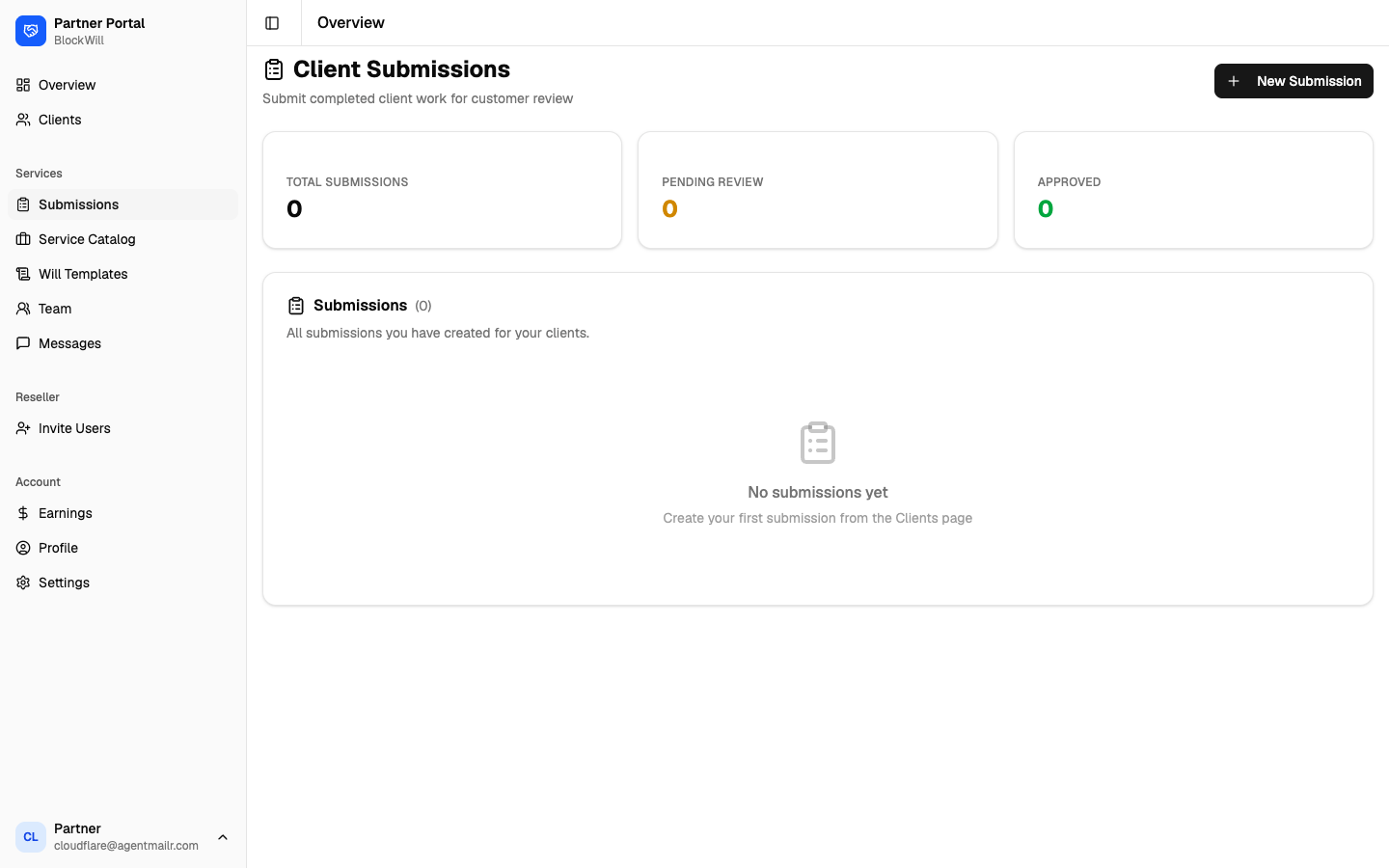
To create a submission
Click New Submission (or start one from a client's page).
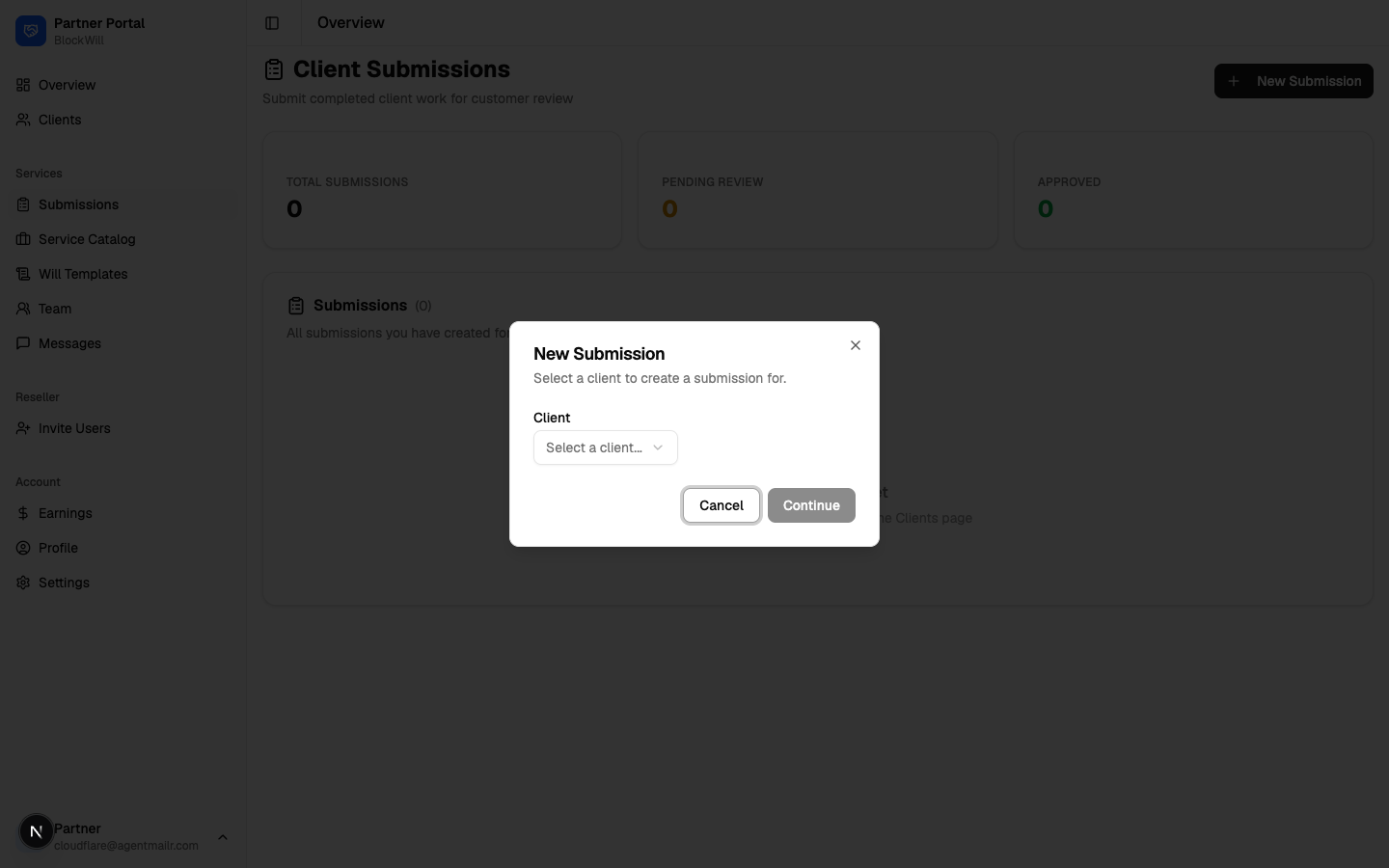
Select a client from the dropdown.
Click Continue and complete the submission for review.
Service Catalog
The services you offer. Each carries a flat fee, and on this flow that fee is what BlockWill pays you when a client is assigned to that service.
To add a service
Click Add Service.
Enter a Service Name, an optional Description, the Flat Fee, and the Currency.
Click Save.
Edit or remove a service with the pencil or trash icons on each card. Each card also shows how many clients are currently assigned to it.
Same screen, opposite direction of money from the reseller catalog. Here BlockWill pays you. On the reseller flow you collect the fee from your own client directly and BlockWill is not involved.
Team
Invite colleagues and delegate specific clients to them. Your team is internal. Neither your clients nor BlockWill can see it.
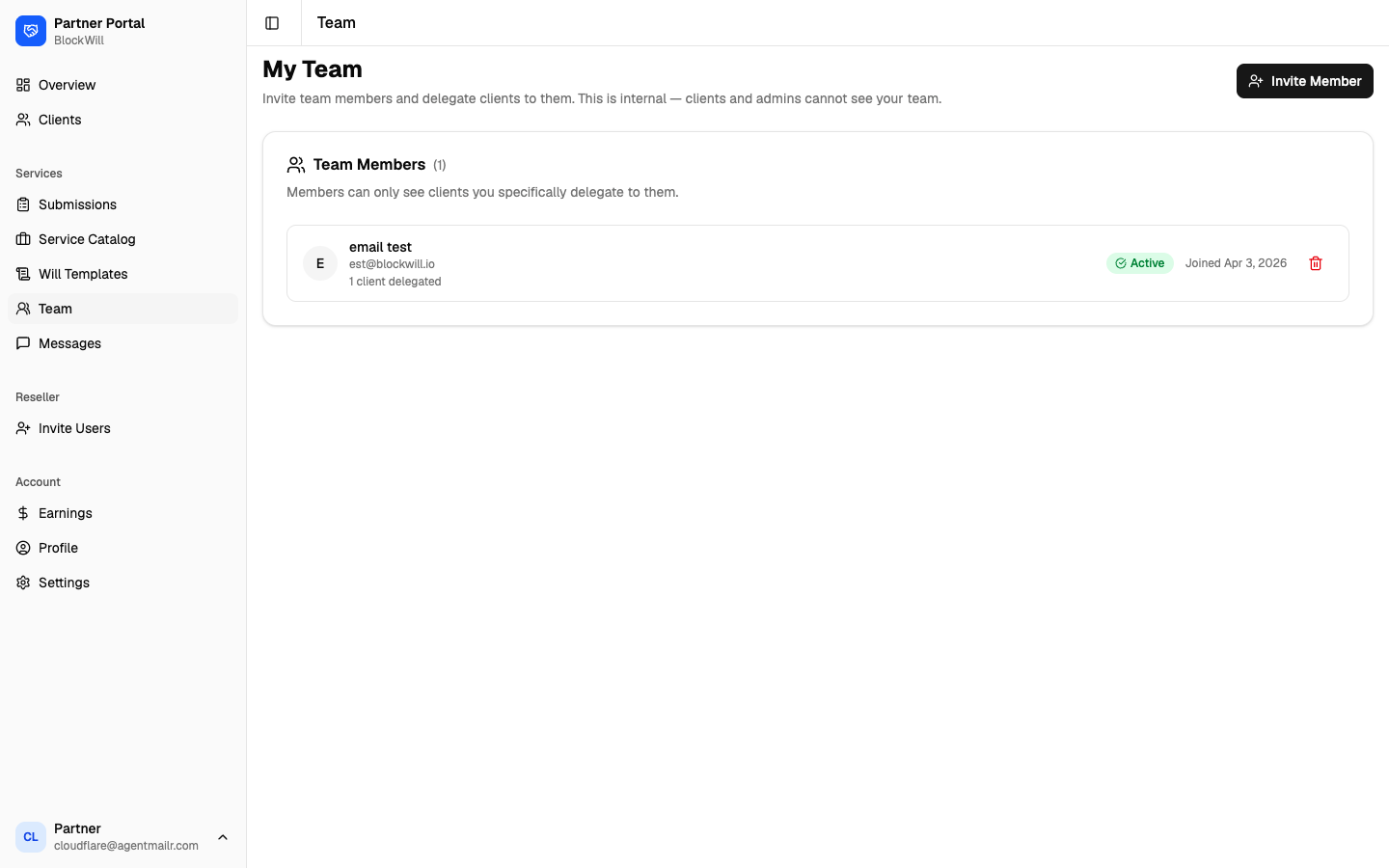
Each team member row shows how many clients are delegated to them and their status.
To invite a member
Click Invite Member.
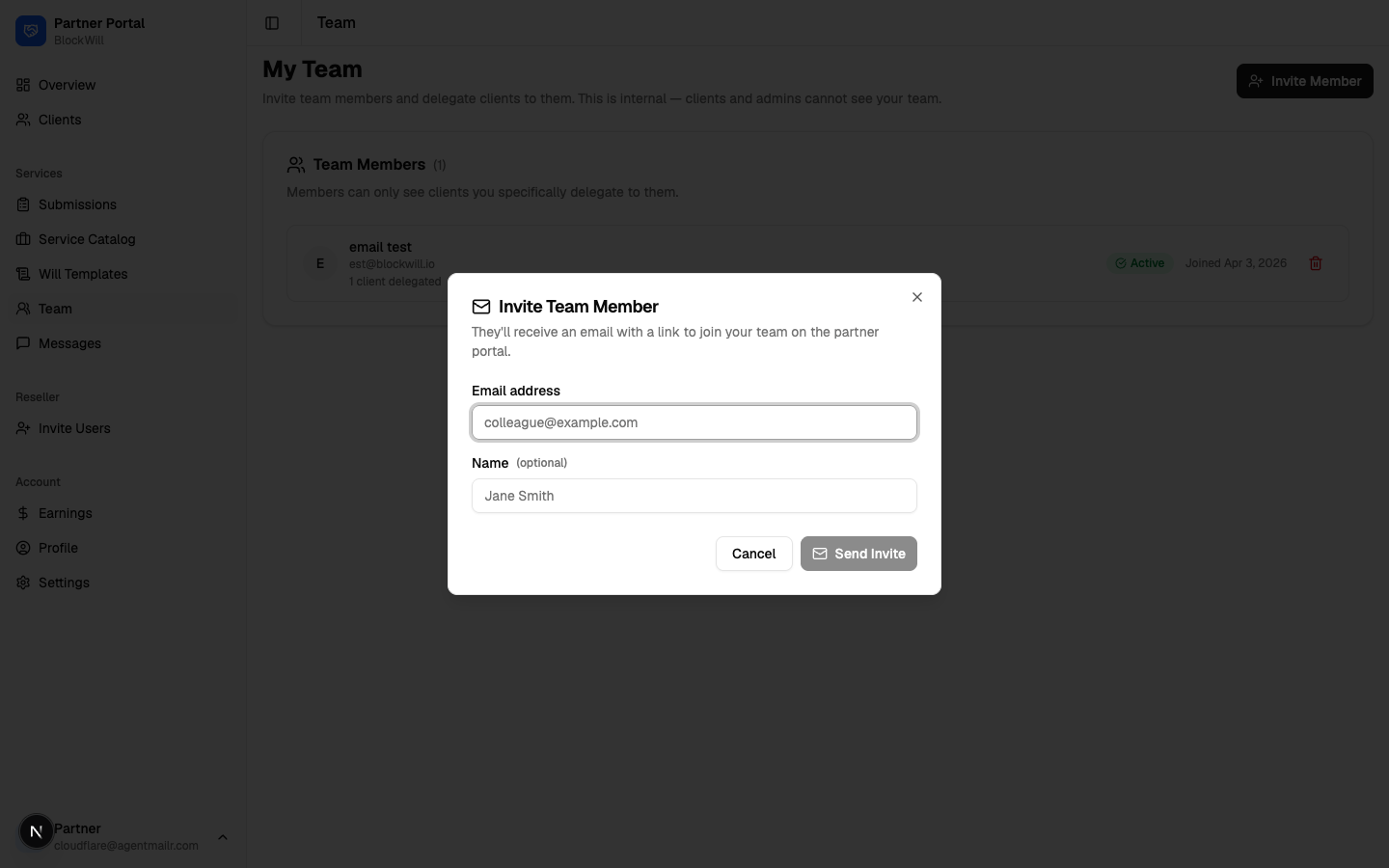
Enter their details and send the invite. They accept via an emailed link, then appear as Active.
What the invited person sees
They click the link in the invite email. It carries a one-use token.
If they are not signed in, they are sent to the sign-in screen first and returned to the invite afterwards. Nothing is lost.
The invite accepts itself. No button to press.
They land on My Clients as a team member.
A link with a missing, used, or expired token fails with "This invite link is invalid or incomplete" and a Go to Login button. Send a fresh invite rather than reusing the old email.
Delegate clients to a member from a client's Delegated to selector on the client detail page. Members only ever see clients you delegate.
Messages
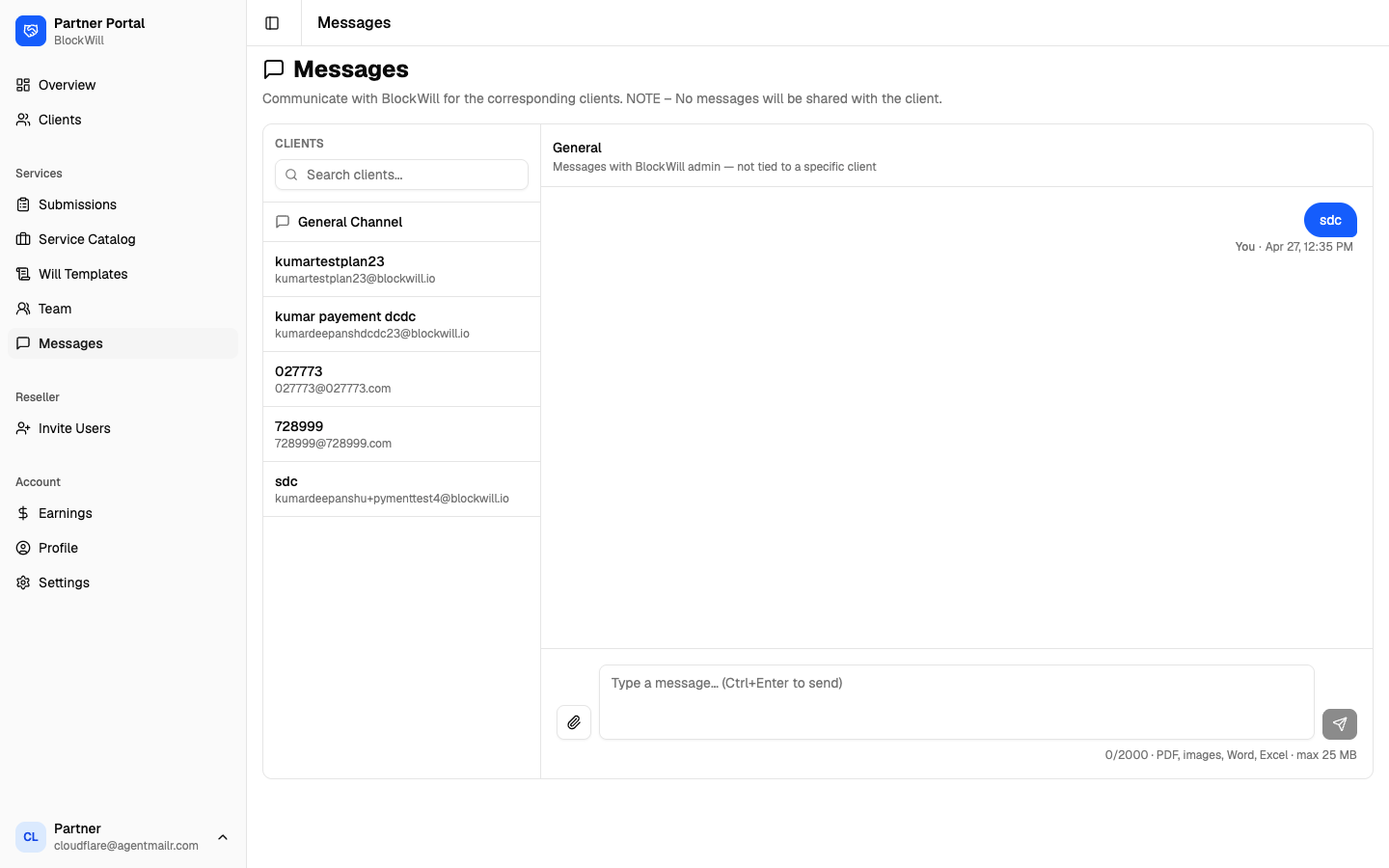
Message BlockWill about specific clients or in the General channel. Pick a client (or General) on the left, type in the composer, and attach files (PDF, images, Word, Excel, up to 25 MB).
These messages are with BlockWill only. They are never shared with the client.