

Working with a legal partner
The Testament page: document requests, will drafts, and signing off on the final copy.
Testament is where you and the law firm drafting your will exchange everything. The firm asks for documents, sends drafts, and you approve or ask for changes. BlockWill is not in the middle of it.
You will only see anything here once a firm has matched you to its account.
Connecting to a firm
The firm gives you a referral code. Open Settings, then Account & preferences, and enter it under Partner referral code. The field checks the code as you type and shows "Valid partner code" in green. The Save button appears once the code is valid.
Saving the code does not open Testament by itself. A matching step follows: the firm (or BlockWill) has to match you to the firm's account. Until then the Testament page says "No legal partner assigned yet".
A partner code can only be set once. Once saved the field locks and reads "Partner code has been set and cannot be changed". Check it before you commit.
The Testament page
The firm's name and contact address sit at the top. Under Partner workspace on the left are three sections:
| Section | What it holds |
|---|---|
| Document requests | What the firm has asked you for, and what you have sent |
| Partner submissions | Drafts of your will, and where each one stands |
| Messages | Notes from the firm |
Messages only appears once the firm has sent you something, and you cannot start a thread. To reply, use a submission's comments or answer a document request.
Sending what the firm asked for
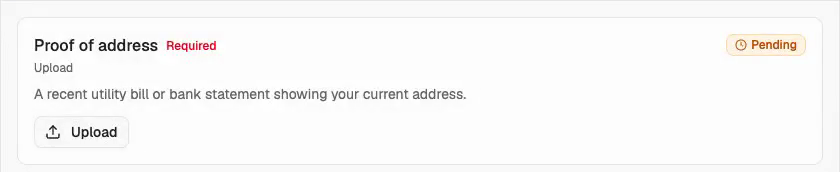
Open a Document request to see its checklist. Each item is either an Upload or a Written answer, and is marked Required or not. The progress bar counts completed items ("1 of 3 done"), and the request flips from Pending to In progress as you work through it. For a written answer, type it and press Save answer.
Requests carry an expiry date. Nothing is lost if you pass it, but the firm is waiting.
Reviewing a draft
Each submission carries a badge: Submitted, Changes Requested, Approved, Final Document (the firm's final copy, waiting for your signature) or Signed Final. Open one and you get the draftsman's notes, the attached document, and the comment thread between you and them.
Three things you can do with a draft: Comment to ask a question, Request Changes to send it back, or Approve when you are happy with it. Read the whole thing first: approving is how the firm knows to produce the engrossed copy. After you approve, the badge turns Approved.
Signing and returning the final copy
Once approved, the firm sends the final document to sign and the submission shows Final Document. The signing form only appears at that point. Download it, sign every page in front of your witnesses, then upload your signed copy: Choose signed file, add a message if you like, and press Submit signed copy. The submission ends up holding both: the firm's final document and yours, signed.
The witnessing requirements are your firm's to explain, not BlockWill's. They vary by jurisdiction and getting them wrong can invalidate the will.